Windows 2000 printer sharing
How to share a printer on a Win2K machine so that it can be used by DOS applications
Created on 4th October 2010
Introduction
Arranging for a DOS application to print via a Windows 2000 host is fairly straight forward. The steps are as follows:
- Inform Windows 2000 that it is to share the printer to other machines on a network.
- Instruct DOS to use the shared printer.
- Instruct RapidFile to use the printer.
- Choose a printer driver for RapidFile.
In the following sections of this article we will learn how to do each step.
Instruct Windows 2000 to share the printer
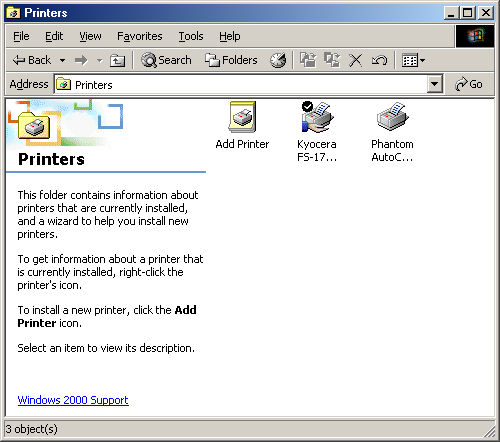
First you will need to find the list of printers. Mine looked like this:
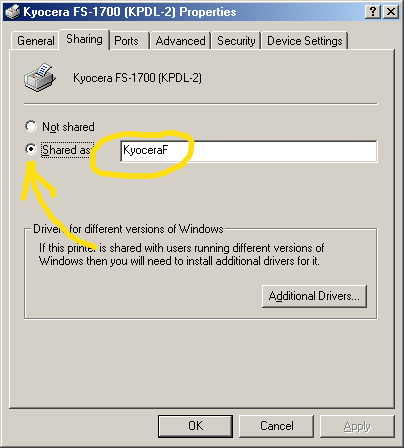
By right clicking on the printer it is possible to change its properties, via a screen that looks like this:
You need to choose the share printer option/
The name of the printer doesn't need to be changed but you do need to jot it down to use later. In my case the printer's network name was "KyoceraF" but yours will probably be something quite different.
Find the computer's network name
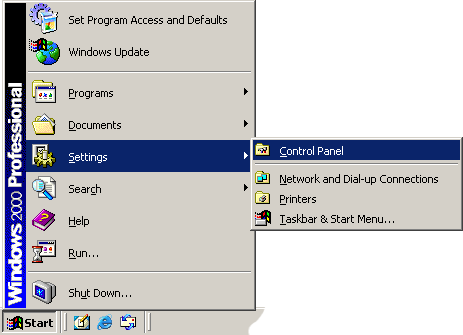
We can discover the computer's network name via the control panel
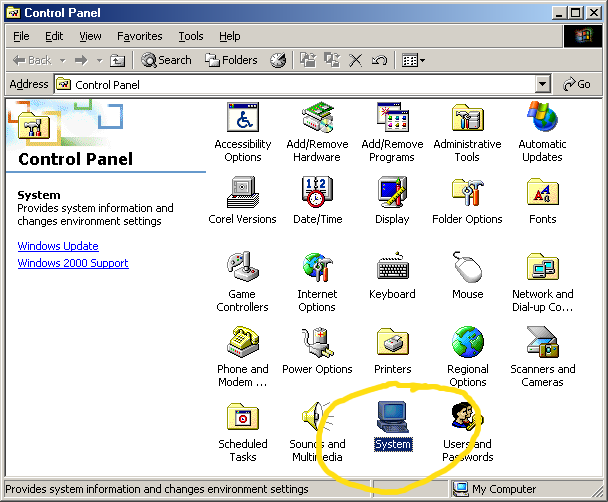
Within the control panel you need to find and choose the "system" icon:
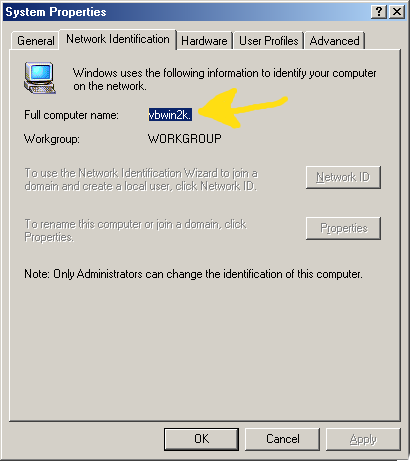
Inside the system window you need to find the "full computer name" and jot it down somewhere.
As you can see, the full computer name for my computer is "vbwin2k" but yours will probably be quite different.
Instruct DOS to use the network printer
At the command line 'C-prompt' you should type the following command:
net use LPT1: \\print_server_name\printer_name /persistent:yes
You must change 'print_server_name' and 'printer_name' to whatever the names are on your network or computer. Also you can change LPT1 to be LPT2 or COM1 or COM2, depending on which printer port you want to use with your DOS programs. If you only have one printer, I suggest you use LPT1.
So, in my case the actual command I typed looked like this:

Note, the port assignment you specify is what you will use to talk to the printer from with your DOS window. How the printer is actually attached to the computer doesn't matter. The printer could be connected via USB or ethernet but your DOS window will still think it is attached to LPT1, or whichever port you specified.
Instructing RapidFile to use the printer
RapidFile understands the existence of two possible printers, and four possible 'ports' that those printers might be attached to. We can inform RapidFile how the printers are attached to the ports by using RapidFile's configure screens. These are found by starting RapidFile with the '/C' parameter. For example, from the command line (C-prompt), most people will need to type: RF /C and then press the 'enter' key. After you get past the usual copyright notice you should see a screen similar to the following.
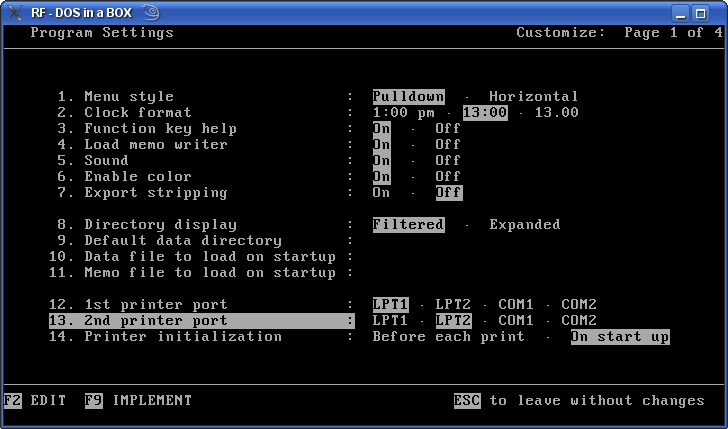
Options 12 and 13 can be used to assign each of the two possible printers to a port. Unless you have some special reason to do otherwise I suggest you assign printer 1 to LPT1 and printer 2 to LPT2, just as shown in the illustration. After you have assigned the printers to ports, press the F9 key to save the changes.
RapidFile printer drivers
The RapidFile diskettes contained quite a few 'drivers' to allow RapidFile to print to different printers. In the 21st century most of those printers will already have been scrapped and the drivers are therefore mostly obsolete. Nonetheless, to print from RapidFile you will need some sort of driver.
The driver files: printer1.drv and printer2.drv
I still need to write some helpful notes about the printer driver files.